Showing posts with label feature. Show all posts

September 22, 2021

Enlarge artwork to copy the cover text (iOS 15)

With SmartPlaylist you can enlarge the cover artwork to large and full screen size - This makes it easier to use a nice new iOS 15 feature: Text recognition.

How to do it:

1. Enlarge and position the artwork in SmartPlaylist

2. Take a screenshot and open it right away

3. Crop the screenshot to the text, if needed

4. Tap the text recognition icon [=]

5. Select and copy the text you want

6. Paste the text to the app you want


See also How to bring the beautiful cover artwork to the front (wallpaper)

September 07, 2020

Save result list from SmartPlaylist as normal playlist

Yes, finally, after ten years, I have found out how to save the result list from SmartPlaylist as a normal (non-smart) playlist in Music. There, you can rename it, play it, reorder titles, edit it, sync it, delete it.

You will get this feature with v13.2, in the list view options (upper right corner).

Each time you tap "Save as Music playlist" a new playlist is created with the (same) name (e.g.) "SmartPlaylist X - Name of your list" and description "Created: date/time".


September 01, 2018

Privacy Policy

SmartPlaylist does not collect any data from the user.
SmartPlaylist does not share any data with third parties.

March 07, 2018

Save/restore search rules of ALL playlists (A-Z) to/from iCloud

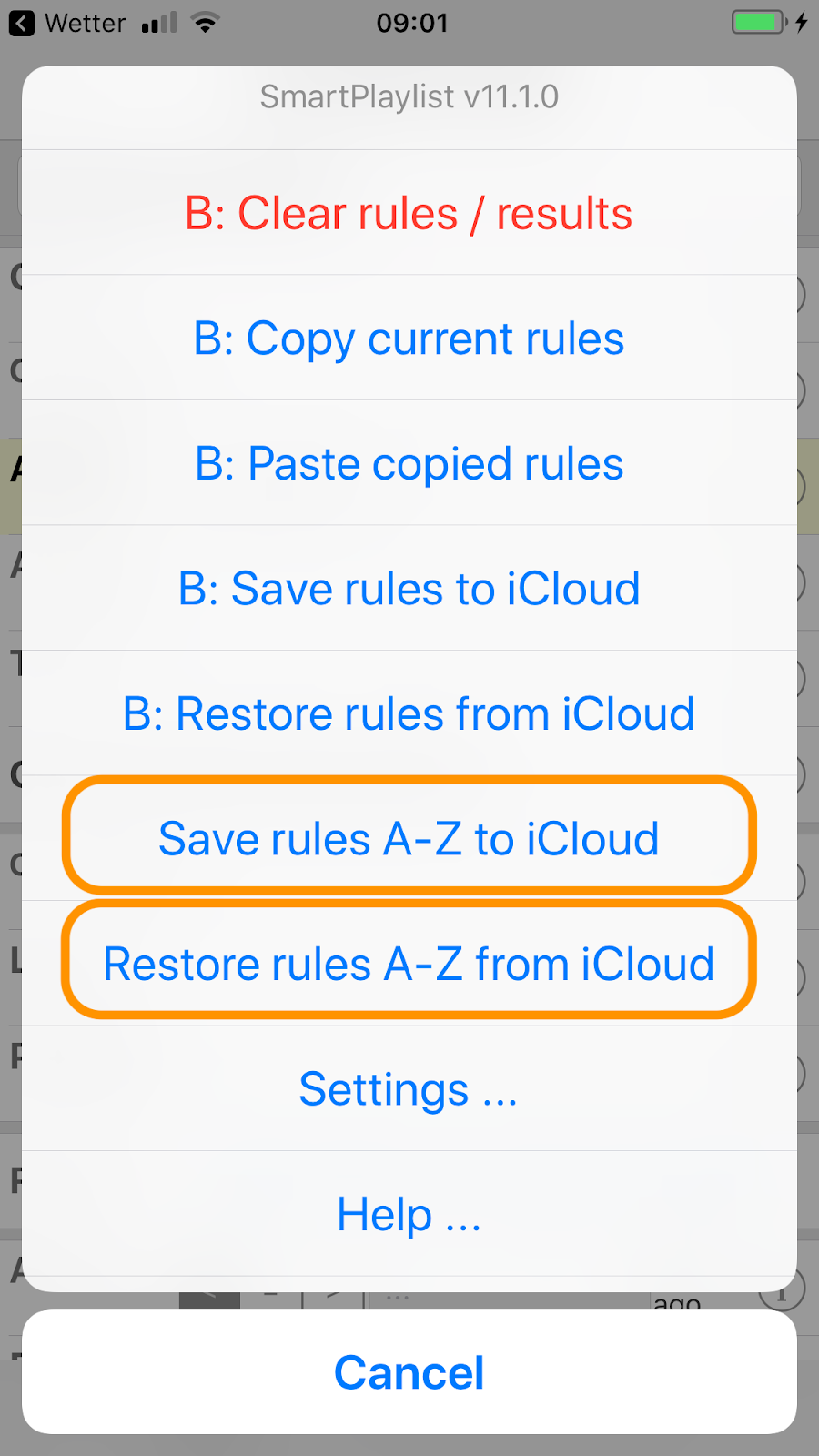
With the new version v11.1.0 of SmartPlaylist you can now save the search rules of ALL playlists (A-Z) to iCloud and restore the search rules of ALL playlists (A-Z) from iCloud with one command, respectively:

In this example with SmartPlaylist B all commands starting with "B: ..." will be applied only to playlist B. The two commands for "A-Z" (marked orange) will process all playlists A-Z.

July 17, 2017

Update lists before adding/subtracting/intersecting them

When you do list operations, i.e. adding/subtracting/intersecting other lists with a "parent" list, SmartPlaylist currently takes the last saved titles from them.
With the next version of SmartPlaylist there will be a new behaviour:
Lists will be automatically updated (loaded and saved) before adding/subtracting/intersecting them to/from/with the parent list. Like that you no longer need to go and reload them one by one before using them in a parent list.


Some hints about list operations:
  • If you do not specify any search rules SmartPlaylist will load ALL songs you have in your media library. Adding other lists to that will have no effect, of course.
  • If you want to have a list, say "A", just to add/subtract/intersect other lists, you have to specify an "impossible" rule like "Genre xyz" in "A" - this gives you an empty list to which you can add other lists
  • SmartPlaylist always first adds the "+" (add) lists, then subtracts the "-" (subtract) lists and finally intersects this result with the "=" (intersect) lists

June 12, 2017

Search with Safari from SmartPlaylist (v10.3.1)

"Search with Safari ..." proposes different search terms based on composer, title, artist, etc. which then are passed to Safari to search the Web (using your default search engine). One of the terms is for example "Lyrics <title>, <artist>" to quickly search for the lyrics of a song.

June 04, 2017

Search in iTunes Store from SmartPlaylist (v10.3)

Similar to "Load all titles with same ..." you can now use "Search in iTunes Store ..."

to get a list of search terms from the genre, composer, artist, artist/genre, album, album/artist, title and title/artist of the selected song. The one you pick will be sent to the iTunes Store app on your device, ...


where it is automatically used to search and show the results:


You can easily go back to SmartPlaylist (upper left) and redo it with a different search term.

May 30, 2017

Small update (v10.2)

This update of SmartPlaylist lets you easily rate the app itself after you use "Rate this title ..." in the detail view:

This is an Apple component (SKStoreReviewController). I hope it will not annoy you but rather make you give a high rating ... (thanks!)

June 05, 2016

Some more afterthoughts ...

Thought I could improve (change, anyway) a few things in SmartPlaylist for the next version 9.4:

Now there are 26 smart playlists (SmartPlaylist A-Z) at your disposition:


  • Open list overview with all 26 SmartPlaylists to pick from ("≔")
  • Jump back to the now playing SmartPlaylist ("▷")
  • Scroll up/down to previous/next SmartPlaylist ("^" / "v")

All 26 smart playlists can be used in the list operations Add / Subtract / Intersect (Was called "Fusion" before - Please re-define your operations with the new pick-list)

There is now a play button in the Detail view (long press for play/pause still works). "Add./Rem." and "Same" now appear in the info list.


April 14, 2016

New in v9.3: Backup/Restore to/from iCloud

SmartPlaylist v9.3 will offer the following new commands:

  • Save settings to iCloud
  • Restore settings from iCloud
  • Save search rules to iCloud (per list A, B, C, ...)
  • Restore search rules from iCloud (per list A, B, C, ...)
The settings/rules are first stored locally on the device (that is why those new commands work so quickly) and then later synced to iCloud. So, even if you are not online or not logged in to iCloud you can backup/retore your settings/rules (on the current device only).


You can use this feature e.g. to
  • Save the rules of a list before changing them, so that you can restore them later
  • Save the settings before experimenting with new settings - you can always restore the previous settings if something goes wrong
  • Move your settings/rules to another device

New in v9.3: Support for iPad split view

With the next release you can use SmartPlaylist side-by-side with other apps on iPad in split view (drag panel from the right and select app, e.g. SmartPlayList).

Notes:

  • Older iPad models do not support split view
  • Tested (only) on iPad Air 2

February 18, 2016

Some new features in the next version

UPDATE: Released with v9.2

In the next few weeks I plan to deliver some new features for SmartPlaylist:

  • Add a title / name / description for each smart playlist. It is stored together with the rules when you load the list. You can show or hide this in Menu > Settings, General Options.
  • Search for media type: All (music and music videos), only music or only music videos. You can show or hide this rule in Menu > Settings, Show / hide rules
  • Order the playlist by album artist
  • Select only x titles per album artist

October 26, 2015

Also search by Album Artist

UPDATE: SmartPlaylist v9.1 has now been released.

Update delayed, because Apple now wants me to remove all album artwork in the screenshots shown in the App Store ... (for more than six years this was no problem)

The next version of SmartPlaylist (v9.1) will also offer to search by Album Artist, in addition to or instead of Artist.

You can make the following settings (in Menu > Settings ...):

- Show / hide rules: Show or hide Album Artist
- MusicBrowser: Show / hide: Use either Artist or Album Artist for the hierarchical Music Browser (e.g. Genre > Composer > Album Artist > Title)

June 16, 2015

New feature: Indicate selected playback options on the "Options" button

In the next version of SmartPlaylist you will see what special playback options you have set directly on the "Options" button:

In this example the Shuffle mode and the Tempo (formerly "Speed") are set to the default / standard value, so nothing is indicated on the "Options" button (no "S" or "T").
As the repeat mode is set on "Repeat: list", "R" indicates a non-standard setting. "P" indicates that the "Pause after each song" is active.

Where there is not enough space to show these letters, a dice will just indicate how many options are not set to the standard value:

New feature: Pause after each song (play stop queue)

In the next version of SmartPlaylist you will find the new playback option "Pause after each song".


When this option is set, SmartPlaylist will stop (pause) playback once a song has finished playing and the next song will be ready for playback -- just press on it to play ("force touch" ;o).
You have to set this option each time you start SmartPlaylist. If it is set, you will see "P" next to "Options".

Note:

  • This feature only works when SmartPlaylist is running in the foreground. It will not work if SmartPlaylist is in the background or if the device is turned off (locked).
  • To prevent screen-lock just in SmartPlaylist, you can turn off "Auto-Lock" in Menu > Settings > General options:

March 20, 2014

SmartPlaylist 7.3

Additional features in "Search" (quick search):
  • "❲Filter❳": Apply the quick search to the current list. Only the matching titles remain in the list. The results are loaded into the playback queue of the Music player (playback is very briefly interrupted).
  • "Mark": The matching titles are marked in yellow. The list and the playback queue remain the same, the playback is not interrupted.
  • "Search next ⇣": Scrolls to the next matching title. Back in the list you can jump to the next directly using "Next".
  • "Reset": Back to the original, unfiltered list (also removes highlights)
(Here shown without the keyboard, which usually is always displayed)

Additional quick search criteria:
  • Quick search by play count: Add for example „>10x“ (= played more than 10 times).
  • Quick search by last played: Use for example „<10d“ (= played less than 10 days ago). „d“ = days, „w“ = weeks, „m“ = months, „y“ = years. [1]
  • Quick search by rating: Instead of minimum number of *, use for example „=4*“ („***“ is the same as „>2*“).

Example:
  1. Load list "A" without any search rules. Now you have all titles in the list.
  2. Filter "A" with quick search "class". Now you only see your Classical titles (depends on your titles, of course)
  3. Filter "❲A❳" with "bach". Now you only have Classical titles by Bach. You could use "C:bach" to only search by Composer, instead of searching all tags (artist, title, etc.)
  4. Enter quick search "****" and tap "Mark". Now all Classical titles by Bach with 4 stars or more are marked in yellow.
  5. "Search next ⇣  for "sarab" will scroll to the next "Sarabande" in your list (highlighted in orange). Titles with 4 or 5 stars are still marked in yellow. Now you can use "Next" to jump to the next and so on.

[1] Auf Deutsch: „T“ = Tage, „W“ = Wochen, „M“ = Monaten, „J“ = Jahre.
      En français: „j“ = jours, „s“ = semaines, „m“ = mois, „a“ = ans.


January 09, 2014

SmartPlaylist 7.2

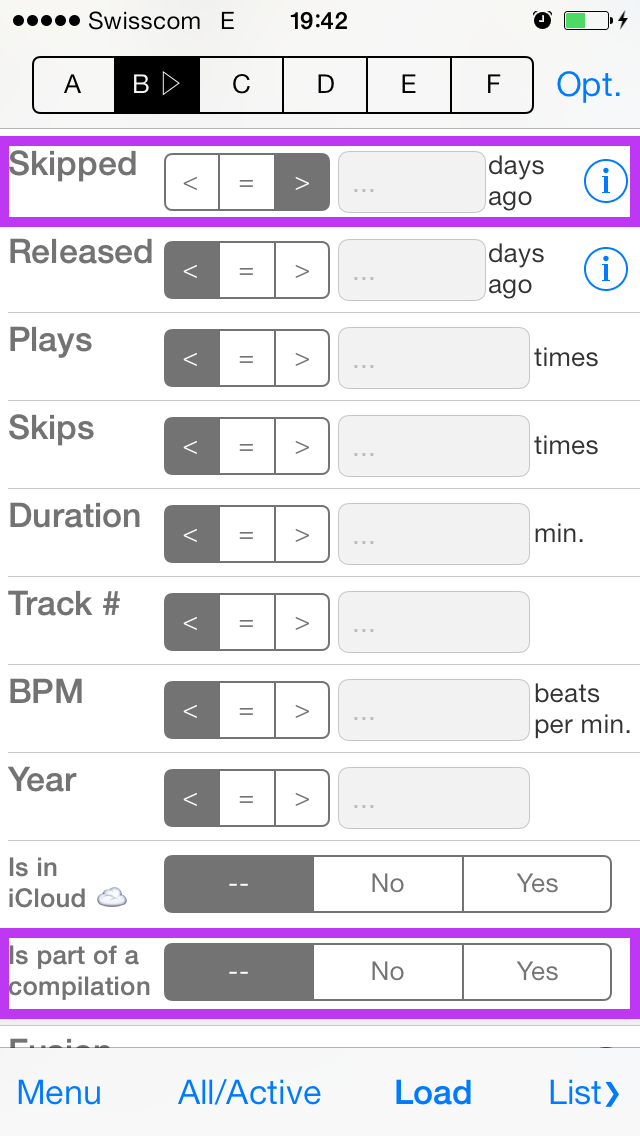
New rules: Last skipped, Is part of a compilation:


You must activate these new rules in Menu > Settings:

More space for artwork and info in list view (iPod / iPhone):

Detail view:

  • Colours for rating, play count and last played corresponding to the indicators on the right side in the list view.
  • Labels to better identify Added, Played, Skipped and Released info.


January 02, 2014

Additional search rules: is compilation, last skipped

With the next version of SmartPlaylist (v7.2) you will get two additional search rules:

  1. Last skipped: How many days / weeks / months / years ago (<, = , >)
  2. Is in a compilation: All / Is not in a compilation / Is in a compilation.

December 07, 2013

New feature: Search and sort by Date Added

So finally, you can search and sort by Date Added in SmartPlaylist v7.1 (should be out before Christmas).

Search with the rule "Added":


Mix and sort with "Added":

Look up "Added":


December 03, 2013

Also coming: Search by Date Added !!!

Seems like there now is a way to get a song's Date Added! Will offer this as a rule (Added x days/weeks/months/years ago).

Finally!