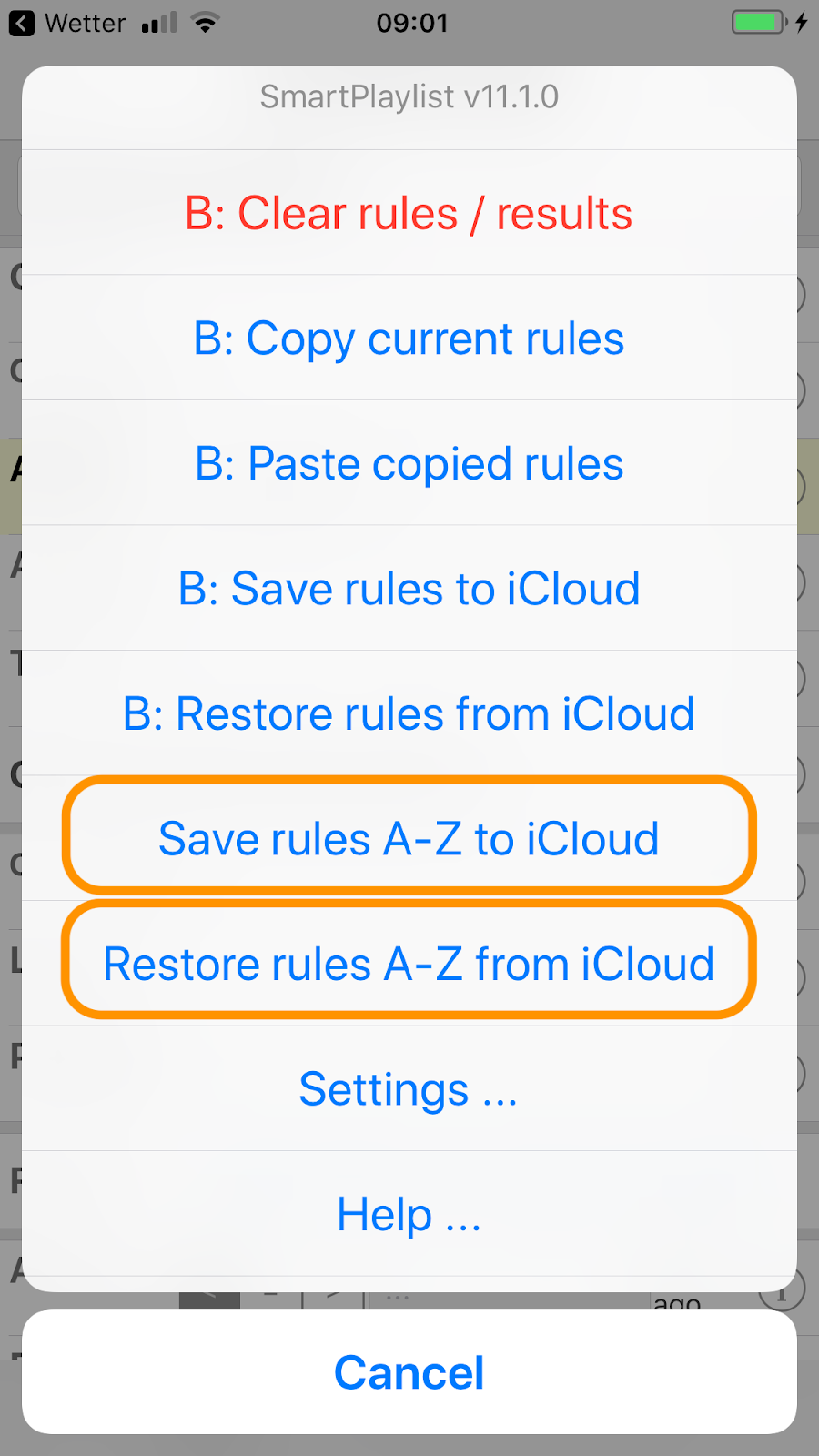
With the new version v11.1.0 of SmartPlaylist you can now save the search rules of ALL playlists (A-Z) to iCloud and restore the search rules of ALL playlists (A-Z) from iCloud with one command, respectively:
In this example with SmartPlaylist B all commands starting with "B: ..." will be applied only to playlist B. The two commands for "A-Z" (marked orange) will process all playlists A-Z.
The most advanced playlist generator for iOS with many unique features
Showing posts with label iCloud. Show all posts
March 07, 2018
April 14, 2016
New in v9.3: Backup/Restore to/from iCloud
SmartPlaylist v9.3 will offer the following new commands:
- Save settings to iCloud
- Restore settings from iCloud
- Save search rules to iCloud (per list A, B, C, ...)
- Restore search rules from iCloud (per list A, B, C, ...)
The settings/rules are first stored locally on the device (that is why those new commands work so quickly) and then later synced to iCloud. So, even if you are not online or not logged in to iCloud you can backup/retore your settings/rules (on the current device only).
You can use this feature e.g. to
- Save the rules of a list before changing them, so that you can restore them later
- Save the settings before experimenting with new settings - you can always restore the previous settings if something goes wrong
- Move your settings/rules to another device
August 22, 2012
iTunes Match (iCloud) support with iOS 6
In the next version of SmartPlaylist you will be able to filter songs by their iCloud status:
"no ☁" --> select only songs which are actually stored on your device
"only ☁" --> select only songs which are in the cloud (but not downloaded to your device)
"All" --> well, all.
If you don't use iTunes Match (like myself) you can simply hide this rule in Settings.
"☁" is also displayed in the list and detail view for songs, which are in the cloud.
Note: This feature will only be available with iOS 6.
"no ☁" --> select only songs which are actually stored on your device
"only ☁" --> select only songs which are in the cloud (but not downloaded to your device)
"All" --> well, all.
If you don't use iTunes Match (like myself) you can simply hide this rule in Settings.
"☁" is also displayed in the list and detail view for songs, which are in the cloud.
Note: This feature will only be available with iOS 6.
January 28, 2012
General problems with lyrics, syncing and iTunes (Match)
UPDATE (iOS 8 / iTunes 12):
Today I purchased some songs on the iPhone and later added the lyrics in iTunes - but the lyrics did not show up on the iPhone after syncing back to it -- this is the known problem.
But then I simply deleted the songs on the iPhone and then synced again from iTunes - after the second sync the lyrics were on the iPhone. Maybe this is the way to solve this problem.
------------------------------------------------------------------------------
With iCloud, iTunes Match and downloads directly to the iPhone it really get's complicated. You are no longer master of your own songs. When you add lyrics in iTunes on the mac and sync back to the iPhone, the lyrics don't show up! In other cases the old lyrics before the change show up!?
It is a problem with iOS 5. All this iCloud and Match stuff is even confusing Apple, it seems.
Deleting the song on the iPhone and then sync it back from the computer does not help.
What you have to do:
--- Now the song will display the lyrics both in the music app and in SmartPlaylist (in SmartPlaylist you must empty the cache with the new ⌘-command "Empty cache after sync" or do a complete restart)
Like that you will loose the Rating, Play Count and Skip Count and get a new Date Added. It is a pain.
Maybe it's better to download songs from Amazon, after all. Then you don't have those troubles.
Today I purchased some songs on the iPhone and later added the lyrics in iTunes - but the lyrics did not show up on the iPhone after syncing back to it -- this is the known problem.
But then I simply deleted the songs on the iPhone and then synced again from iTunes - after the second sync the lyrics were on the iPhone. Maybe this is the way to solve this problem.
------------------------------------------------------------------------------
With iCloud, iTunes Match and downloads directly to the iPhone it really get's complicated. You are no longer master of your own songs. When you add lyrics in iTunes on the mac and sync back to the iPhone, the lyrics don't show up! In other cases the old lyrics before the change show up!?
It is a problem with iOS 5. All this iCloud and Match stuff is even confusing Apple, it seems.
Deleting the song on the iPhone and then sync it back from the computer does not help.
What you have to do:
- Copy the song from iTunes to your desktop (or any other folder) -- the lyrics are contained within this file
- Delete the song in iTunes (with "move to trash")
- Delete the song on the device (in the built-in music app, with a swipe gesture)
- Sync from computer to device by cable
- Add the song back to iTunes
- Sync again
--- Now the song will display the lyrics both in the music app and in SmartPlaylist (in SmartPlaylist you must empty the cache with the new ⌘-command "Empty cache after sync" or do a complete restart)
Like that you will loose the Rating, Play Count and Skip Count and get a new Date Added. It is a pain.
Maybe it's better to download songs from Amazon, after all. Then you don't have those troubles.
Subscribe to:
Posts (Atom)


